A livestream clock is a web page that OBS draws inside the scene. You do not install a plugin and you do not give Clockbeam your stream key. You copy a URL, you paste it into a Browser Source, and you set the source to the size the page was drawn for. The same pattern covers a plain clock, a countdown, and a starting-soon card. The differences are the URL and what happens when OBS reloads the page.
OBS documents Browser Source as a web page inside the program, available on Windows, macOS, and Linux. The properties table on that page lists a URL, a width, and a height. The defaults in that table are 800 by 600. Clockbeam’s overlays are built for a 1920 by 1080 browser source so the type scales with a full HD frame. Use that size even though it is not OBS’s default. You can scale the source in the preview afterward. A source left at 800 by 600 will show the page in a small viewport and then look soft if you stretch it.
A clock on the stream
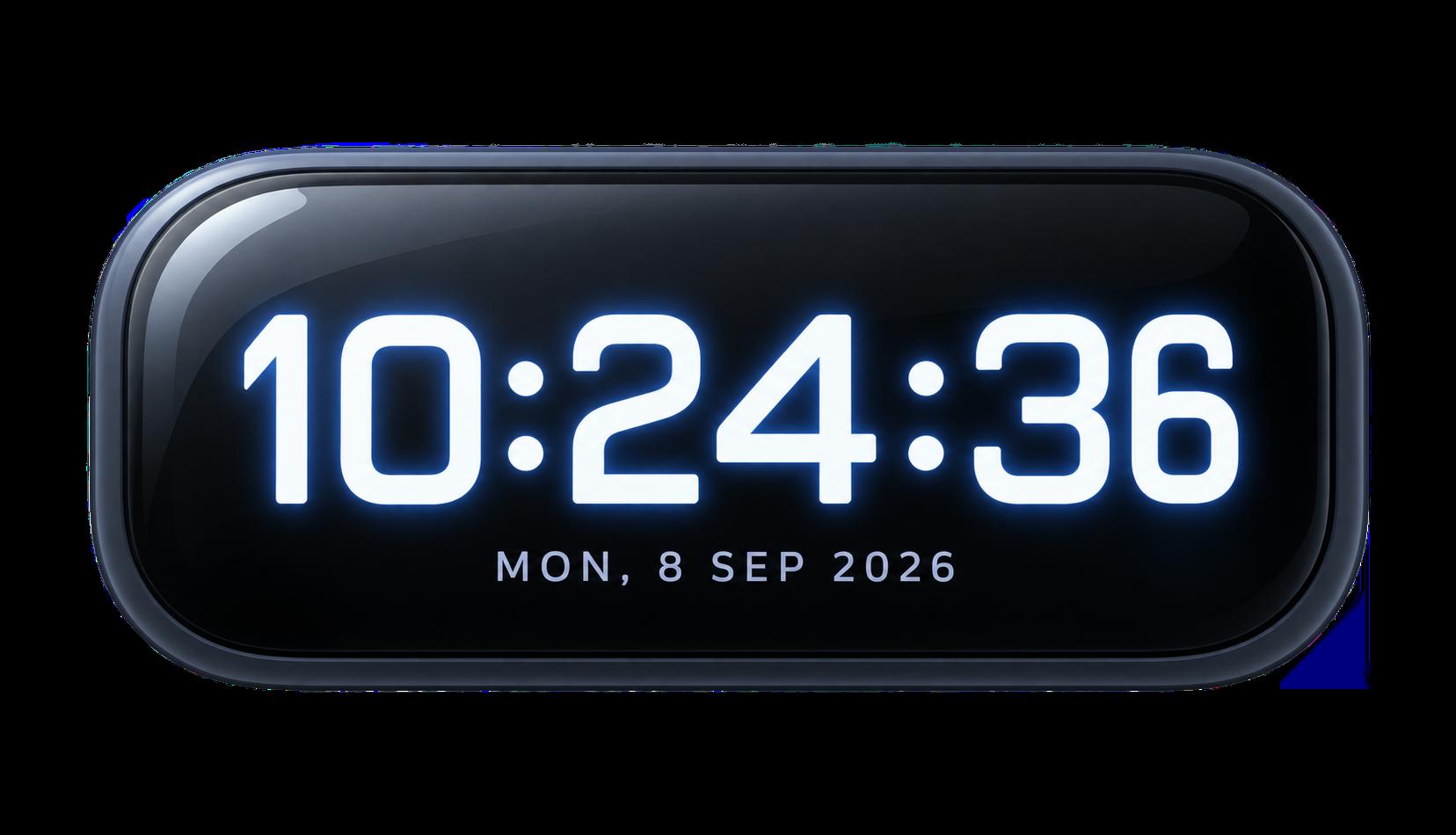
Open OBS clock or start in Overlay Studio with the type left on Clock. Pick a preset. Minimal Broadcast is transparent, so the scene behind the source stays visible. Set 12 hour or 24 hour time, seconds, the date, and a time zone if the stream should not follow the computer that is running OBS.
The overlay follows the clock in that computer. It does not sync to a second device and it does not sync to NIST’s UTC(NIST). If the streaming PC is wrong, the overlay is wrong. Fix the PC’s clock before you blame the URL.
Copy the browser source URL. In OBS, add a Browser Source, paste the URL, and set the width to 1920 and the height to 1080. Leave the browser source custom CSS empty. Clockbeam’s own instruction is that a transparent clock needs no extra CSS. OBS’s knowledge base shows a default custom CSS snippet that sets the page background to transparent, removes the body margin, and hides overflow. If you replace that with something else, you can paint a box behind the digits. Empty, for this overlay, is the setting that lets a transparent preset show the scene.
The overlay page has no site header and does not load analytics. It also does not play sound. A chime you wanted the audience to hear is not coming from this source. Play that cue somewhere else, or do not promise it.
A countdown that survives a reload
Open OBS countdown or choose Countdown in Overlay Studio. You have two kinds of end. A duration counts a length of time. An event time counts down to a date and time in the zone you pick. They behave differently when the browser source reloads, and reloads are normal. OBS can refresh a source, and the properties include “Shutdown source when not visible” and “Refresh browser source when scene becomes active.” Shutdown, when turned on, unloads the page when the source is hidden or not in the active scene. The OBS default for that checkbox is off, but if you turned it on, hiding the source unloads the page. You should assume a reload will happen at least once in a real stream.
Anchor to now writes the end into the URL, so a reload of that same URL keeps the end. An event time works the same way because the end is an absolute moment, not “fifteen minutes from whenever this page woke up.” A duration without an anchor is remembered only in that browser source, on that computer. If OBS shuts the source down and that profile has no saved deadline, Start on load begins a new duration. That is the failure mode people describe as “the countdown restarted when I changed scenes.” The fix is an event time, or Anchor to now, so the end lives in the URL you pasted.
Pause and Reset appear only if you turn on Show pause and reset. In OBS, right-click the source and choose Interact. Clicks on the program output do not reach the page. An anchored duration cannot be paused, because its end is fixed in the URL. If you need to pause, you wanted an unanchored duration and you have accepted that a reload may start it over. Those are the two consistent choices. You do not get a pause button and a URL that freezes the end.
There is no shared remote control. A producer on another computer does not get a button that pauses your source. They would need the interact view on the machine running OBS.
When the countdown reaches zero it stays on Done until you change the length or the event time. It does not play a chime. If the stream needs an audible cue, that cue is a scene change or an audio file you trigger yourself. The digits are the cue the overlay can actually keep.
Starting soon is the same countdown with a heading
The starting soon countdown is a card. The heading defaults to “Starting soon,” and you can edit the heading and an optional second line in Overlay Studio. The text is plain. Markup is removed, so you cannot paste styled HTML into the title and expect it to render. Use a duration, or an event time if the stream starts at a clock time you already know.
Copy that URL into a 1920 by 1080 browser source as well. Reload behavior matches the countdown. An event time or an anchored duration keeps its end. A plain duration is local to that browser source. The card does not place your camera, your chat, or your game capture. It is one source. You still build the rest of the scene.
If you change the heading, copy the URL again. The text is part of the configuration the URL carries. An old URL keeps the old words.
A setup you can check before you go live
Create the source at 1920 by 1080. Paste the URL. Confirm the custom CSS field is empty if you are using a transparent clock. Toggle the source visible and hidden if you use shutdown-when-not-visible, then look at whether a countdown kept its end. If it restarted, you wanted Anchor to now or an event time. Check the clock against a phone only as a sanity check. They can disagree by the difference in their clocks. The overlay matches the streaming PC.
Do not point a browser source at the ordinary Clockbeam homepage if you wanted a clean overlay. The homepage is a website, with a header and a footer. The overlay URLs are the pages drawn for a source. The widget builder is a third thing: an iframe for someone else’s website, not for OBS. A widget and a browser source can both show a clock. They are copied from different places and they are not interchangeable in a scene.
Nothing here requires an account. The URL is the setup. Save the scene in OBS and you have saved the URL with it. If you edit the overlay and OBS is still showing the old source, refresh the browser source or paste the new URL. A cached page is a property of the source, not a second clock.