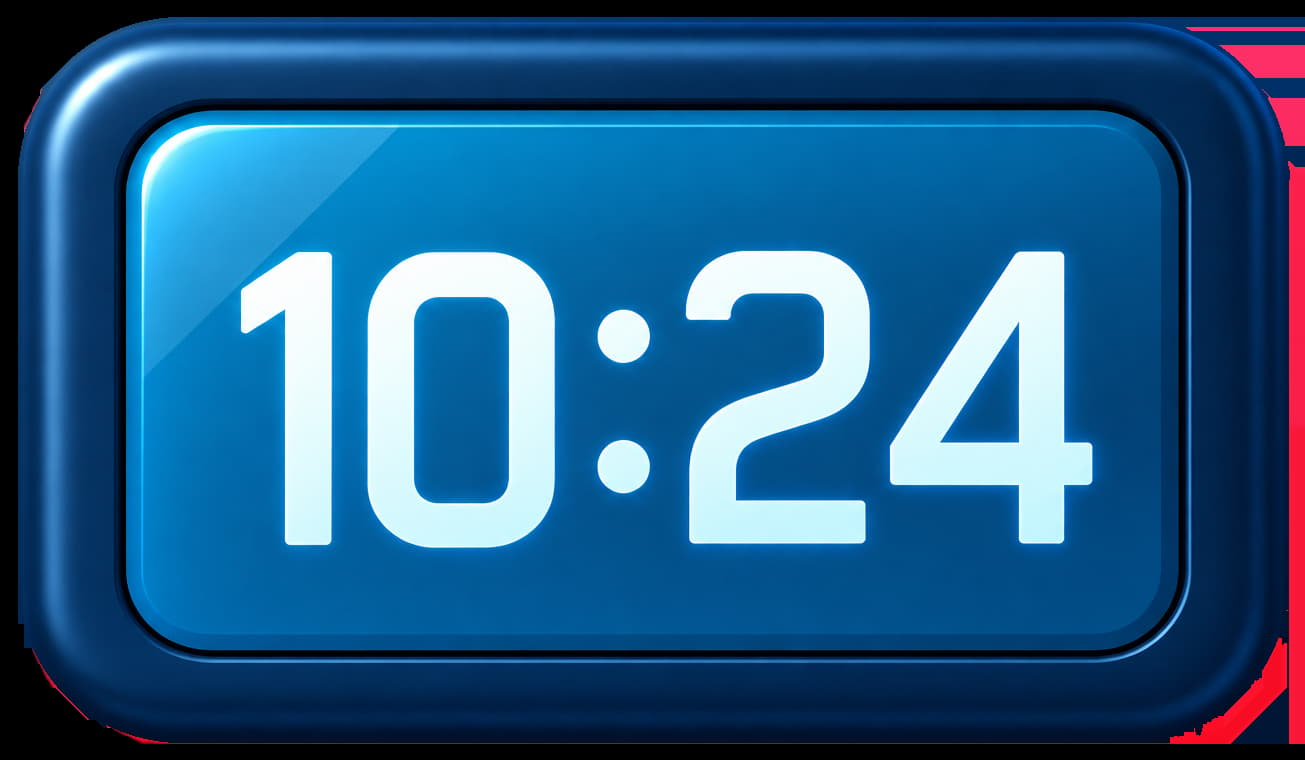
A classroom clock has one job: be readable from the back of the room without becoming the lesson. The time should be large, the page should not be full of other controls, and the display should stay awake for the period. Clockbeam’s fullscreen clock is that layout. It is the same device clock as the homepage, shown for a projector, a television, or a second screen. It is not a bell schedule, not a hall-pass system, and not a different source of time.
If the class activity needs a duration rather than the time of day, use a countdown beside this clock or instead of it. The online timer is the duration. The fullscreen clock is the time of day. Many rooms want both, on two pages, because “it is 10:12” and “this activity has four minutes left” are different sentences.
What you are putting on the screen
Open the fullscreen clock. The digits follow this computer, or a time zone you picked in Customize. Seconds, the date, the size, and the colors come from Customize too. Restore defaults puts the original display back. If you want a flip display or hands instead of digits, those are the flip clock and the analog clock. They read the same device time. This page is the large digital layout meant to fill a screen.
Press Fullscreen. The browser asks to use the screen. That request is a permission, and a locked-down school browser can refuse it. Clockbeam cannot force a projector or a managed browser to allow fullscreen. If the request is blocked, the clock expands inside the page so the time is still large. Press Exit or Escape to return to the normal layout. Practice that refusal once, on the actual classroom computer, before the first period you care about. A clock that only works on your laptop at home is not a classroom clock yet.
Keep screen on asks for a wake lock. The Screen Wake Lock API is the browser feature that lets a page request that the screen stay on. Support is up to the browser. If this browser cannot hold a lock, the button says the screen lock is unavailable. If the lock is active, the button says the screen stays on. A sleeping display or a closed laptop will not keep the clock visible no matter what the button promised. Wake lock is a request, not a power setting you can impose on the operating system from a web page. Plug the computer in. Set the system’s own sleep delay longer than the period if the wake lock is unavailable. Those are operating-system steps, and they matter more than another click inside the page.
Set it up before the students are watching
Decide the zone first. A laptop that traveled may still be on home time. The label under the clock names the zone and the current offset. If the school is in another zone, pick that zone in Customize and read the label back. The world clock guide explains offsets and daylight saving. For a classroom, the practical test is simpler: does the big clock match the time the office says it is? If it does not, fix the device or the zone before you discuss it with the room. Arguing with a projector is a poor opening.
Decide whether seconds help. Seconds make a clock feel alive and they make some students watch the clock instead of the work. Turn Show seconds off if the room only needs the minute. The choice is saved in this browser.
Turn the brightness up on the display itself. A theme with pale digits on a bright background is readable in a sunny room. A dark theme is readable in a dim one. Customize is where the colors change. Stand at the back of the room and read the hour. If you cannot, the clock is decorative. Increase the size or move the projector. The page can only be as large as the screen you give it.
Hide the other tabs, or use fullscreen so they disappear. A notification sliding over the time is the usual way a classroom clock fails in practice. The browser and the operating system own notifications. Turn them off on that machine for the period, or use a profile that does not receive them. Clockbeam does not control the mail client.
Pair it with a timer when the activity has an end
The clock answers “what time is it?” A worksheet that should stop at a fixed length needs a countdown. Open the timer on another device, or take turns with the projector if you only have one screen. Preset pages exist for 5, 10, 15, and 30 minutes. Anything else is set on the main timer. Press Start when the activity begins, not when you finish explaining it, unless the explanation is part of the budget.
There is no sequence of activities inside the clock. You cannot load “warm-up, then groups, then exit” as a programmed rotation. Run one countdown, then the next. A Pomodoro round is a focus-and-break cycle, which is rarely what a class period is. Use it only if that cycle is actually the lesson structure.
The alarm is a poor substitute for a bell. It rings only while its tab is open on an awake device, and a missed alarm expires instead of ringing late. A school bell, a phone, or the room’s own speaker is the right tool for a bell. The fullscreen clock is how everyone can see the minute the bell is supposed to match.
A substitute’s five-minute setup
On the classroom computer, open the fullscreen clock. Check the zone label against the office clock. Press Fullscreen. If it fails, use the expanded page and note that this browser blocks the permission. Press Keep screen on. If it reports that the lock is unavailable, set the system sleep longer than the class and leave the power cable in. Glance from the back row. Start the lesson.
At the end, Exit fullscreen so the next person inherits a normal window. The display settings stay in this browser. If the computer is shared and the next teacher wants different colors, Customize is where they change them, and Restore defaults is there if the room should go back.
Nothing about this setup requires an account. Nothing about it syncs the projector to an atomic clock. NIST’s UTC(NIST) is a laboratory scale. This display follows the computer. If the computer is thirty seconds off the office clock, fix the computer. The projector will follow.